If you are searching for the My Account Google Security Checkup password settings, you are probably trying to do one of three things:
- Review the security of your Google Account
- Change your Google Account password
- Find a password that Google saved for another website or app
These options are connected, but they are not located in exactly the same place. Google Security Checkup reviews the overall safety of your account, while Google Password Manager stores passwords for websites and apps.
Here is how to find each one.
What Is Google Security Checkup?
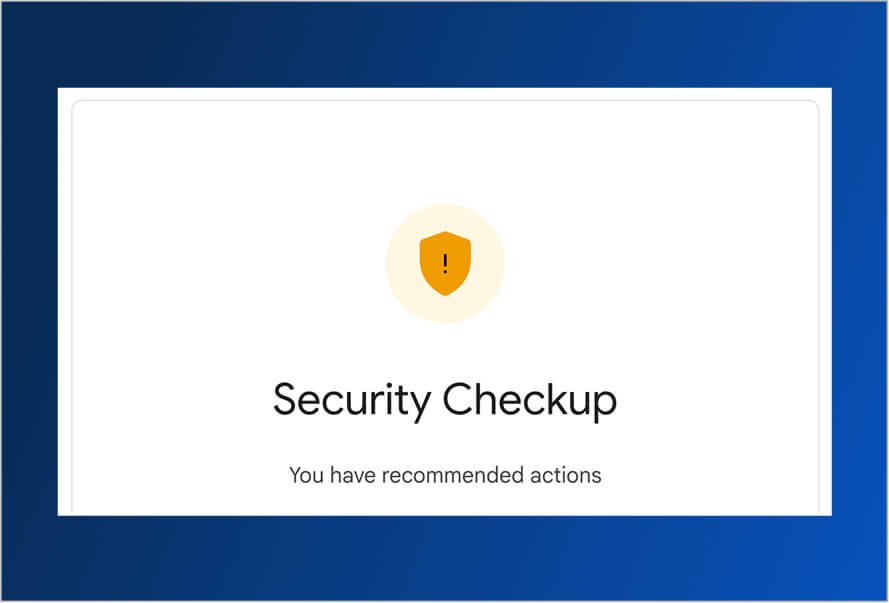
Google Security Checkup is a guided review of your Google Account security settings. It can help you identify unfamiliar activity, outdated recovery information, unknown devices, and other possible account risks.
Google recommends completing a Security Checkup regularly.
The checkup may ask you to review:
- Recent security activity
- Devices connected to your account
- Recovery phone numbers and email addresses
- Sign-in methods
- Third-party apps with account access
- Security recommendations from Google
The exact items shown can vary depending on your account and which Google services you use.
How to Access Google Security Checkup
There are two easy ways to open the Security Checkup.
Option 1: Go Directly to Security Checkup
Open a web browser and enter:
myaccount.google.com/security-checkup
Sign in to the Google Account you want to review.
Make sure you are using the correct account, especially if you have separate personal, work, or school Google accounts.
Option 2: Navigate Through My Google Account
You can also access the security settings through your main Google Account page.
- Go to myaccount.google.com.
- Sign in if needed.
- Select Security & sign-in from the navigation menu.
- Review the security recommendations and account settings shown.
You can also reach this page from Gmail or another Google service:
- Select your profile picture in the upper-right corner.
- Select Manage your Google Account.
- Open Security & sign-in.
Google occasionally updates the wording and layout of its menus, but the security settings should remain within the Google Account dashboard.
Step-by-Step: Complete the Google Security Checkup
Once Security Checkup opens, work through each recommendation rather than just checking your password.
Step 1: Review Recent Security Activity
Look for sign-ins, password changes, recovery changes, or other actions you do not recognize.
Google provides a Recent security events area where you can review suspicious activity. If an event was not yours, select the option indicating that you do not recognize it and follow Google’s instructions to secure the account.
Pay attention to:
- Devices you do not own
- Locations where you have not recently been
- Password changes you did not make
- New recovery information
- Sign-ins at unusual times
A location may not always be exact, especially when using mobile data or a VPN. Review the device and activity details before deciding whether a sign-in is suspicious.
Step 2: Review Devices Signed Into Your Account
Open the Your devices section and select Manage all devices.
Google will show devices where you are currently signed in or were signed in during the last few weeks. A single device may appear more than once because different browsers, apps, or sessions can create separate entries.
Sign out of devices that:
- You no longer own
- Belong to someone else
- Were lost or stolen
- You do not recognize
- Are no longer being used
If you are unsure about a device, signing it out is usually the safer option. You may need to sign in again the next time you use it.
Step 3: Confirm Your Recovery Information
Check the recovery phone number and recovery email connected to the account.
Recovery information can help Google verify your identity if you forget your password, lose access to your account, or Google detects unusual activity.
Remove phone numbers and email addresses you no longer control. Add current information that you can access without relying on the Google Account you are trying to protect.
For example, do not use the same Gmail address as your recovery email.
Step 4: Review Your Sign-In Protections
Look under How you sign in to Google.
Depending on your account, you may see:
- Password
- 2-Step Verification
- Passkeys
- Google prompts
- Authenticator options
- Backup codes
- Recovery methods
Turn on 2-Step Verification when possible. It adds another identity check so that knowing the password alone may not be enough to access the account. Google also recommends using a strong, unique password for each account.
Step 5: Review Third-Party Access
Check which apps and services are connected to your Google Account.
You may have granted access when using Sign in with Google or when connecting a service to Gmail, Google Drive, Google Calendar, or another Google product.
Remove access for apps that:
- You no longer use
- You do not recognize
- Come from an unknown company
- Request more access than they need
Removing access does not necessarily delete your account with that company. It stops that service from continuing to access the approved parts of your Google Account.
How to Change Your Google Account Password
To change the password used for Gmail, Google Drive, YouTube, and your other Google services:
- Go to myaccount.google.com.
- Select Security & sign in.
- Find How you sign in to Google.
- Select Password.
- Verify your identity if prompted.
- Enter your new password.
- Select Change Password.
These are the current computer navigation steps provided by Google.
Use a password that is:
- Unique to your Google Account
- Difficult for someone else to guess
- Not based on your name, business, birthday, or phone number
- Not reused from another website
After changing the password, Google may sign you out of most devices. Some devices used for authentication, connected third-party apps, and certain home devices may remain signed in.
Can You See Your Current Google Account Password?
Google does not provide a button that reveals your current Google Account password from the account settings.
You can change the password, but you cannot open the Google Account dashboard and display the password currently protecting the account.
However, your Google password might appear in Google Password Manager if you previously saved it as a website login. Whether it appears depends on where the password was saved and which Google Account or browser profile you were using.
Be careful when revealing passwords on a shared or public computer.
How to See Passwords Saved by Google
Google Password Manager stores passwords and passkeys that you saved while using Chrome, Android, or your Google Account.
These are usually passwords for other websites and apps. They are different from the main password used to access your Google Account.
View Saved Passwords From a Web Browser
- Go to passwords.google.com.
- Sign in to the correct Google Account.
- Search for the website or app.
- Select the saved account.
- Verify your identity if prompted.
- Select the eye icon to show the password.
You may be asked to enter your computer password, screen-lock PIN, fingerprint, or another verification method before the password is displayed.
View Saved Passwords in Chrome
On a computer:
- Open Google Chrome.
- Select the three-dot menu in the upper-right corner.
- Select Passwords and autofill.
- Select Google Password Manager.
- Choose the website or account.
- Select Show password.
Google Password Manager also allows you to edit, delete, or export saved passwords.
Only export passwords when absolutely necessary. An exported password file may contain readable login information and should not be stored in an unsecured folder or sent through regular email.
Google Account Password vs. Saved Passwords
This difference causes a lot of confusion.
Your Google Account password is the password used to sign in to Google services such as Gmail, Drive, Calendar, and YouTube.
Your saved passwords are login details that Google Password Manager remembers for websites and apps.
Changing an entry inside Password Manager does not necessarily change the actual password on that website.
For example, manually editing a saved Facebook password only changes the information stored by Password Manager. To change the real Facebook password, you must update it through Facebook’s account settings and then save the new password.
How to Run Google Password Checkup
Password Checkup examines passwords stored in Google Password Manager.
To run it through Chrome:
- Open Chrome.
- Select the three-dot menu.
- Select Passwords and autofill.
- Open Google Password Manager.
- Select Checkup from the left menu.
Google Password Manager can identify saved passwords that may have appeared in a known data breach or that may be weak and easy to guess.
It may organize the results into categories such as:
- Compromised passwords
- Reused passwords
- Weak passwords
Work on compromised passwords first. Change the password directly through the affected website, then make sure the updated password is saved correctly.
What to Do If Google Finds a Password Problem
Do not ignore a compromised password warning just because the account still works.
Take these steps:
- Go directly to the website named in the warning.
- Change the password through that website’s account settings.
- Use a password that is not used anywhere else.
- Turn on multi-factor authentication when available.
- Review recent sign-ins and account activity.
- Update the password stored in your password manager.
If the compromised password was reused, change it everywhere it was used. Someone with one leaked password may try the same email address and password on other popular services.
Google recommends using Password Checkup to find saved passwords that are weak, exposed, or reused.
Why Your Saved Passwords May Not Appear
If Google Password Manager appears empty, first confirm that you are signed in to the correct Google Account.
Passwords may be missing because:
- They were saved under another Google Account
- They were saved in another Chrome profile
- They are stored only on another device
- Chrome synchronization was turned off
- They were saved in Safari, Firefox, Edge, or another browser
- Another password manager stored them
- The passwords were deleted
- A workplace or school administrator restricted the feature
Check the profile picture in Chrome and at passwords.google.com. The email address shown should match the account you were using when the passwords were originally saved.
Frequently Asked Questions
Is Security Checkup the Same as Password Checkup?
No.
Security Checkup reviews the broader security of your Google Account, including devices, recent activity, recovery methods, and connected apps.
Password Checkup focuses on the passwords stored in Google Password Manager.
Running both provides a more complete review.
Can I See Passwords Saved by Google?
Yes. Open Google Password Manager, select the saved website or app, verify your identity, and select the eye icon.
Can I See My Current Gmail Password?
Not directly through the Google Account settings. Gmail uses your Google Account password, and Google allows you to change or reset it rather than displaying it.
How Often Should I Complete a Security Checkup?
Complete one periodically and whenever:
- Google sends a security alert
- You see an unfamiliar sign-in
- A phone or computer is lost
- An employee leaves your company
- You accidentally shared a password
- A saved password appears in a data breach
- Your recovery phone number or email changes
Taking a few minutes to review the account can help you find problems before they result in lost access, exposed email, or unauthorized changes.
How Do Google’s Privacy and Security Tools Work Together?
Google’s privacy and security tools help you control your personal information, review account access, manage saved passwords, and identify possible security risks. Security Checkup focuses on protecting your account, while Google’s privacy settings help you review what information is saved and how it is used.