
To check whether someone is accessing your Google Account, start with two places:
- Google’s Security Checkup
- The Google Account Security Devices page
These tools show recent security events, devices, and sessions connected to your account, recovery information, and other security concerns.
You can also check Gmail’s Last Account Activity for more specific information about how your email has been accessed.
Quick Answer: How to Check Who Is Accessing Your Google Account
Open your Google Account and select Security & sign-in.
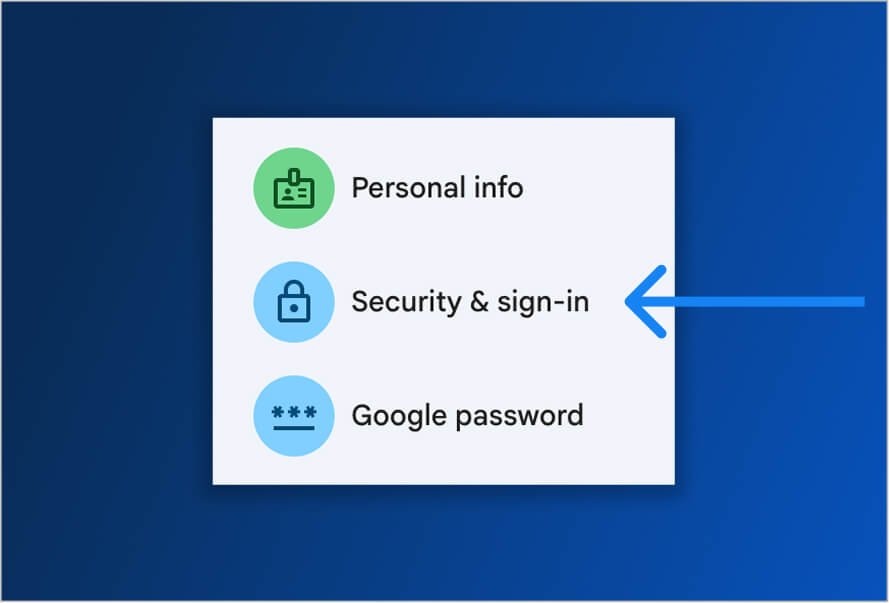
From there:
- Review Recent security events
- Open Your devices
- Select Manage all devices
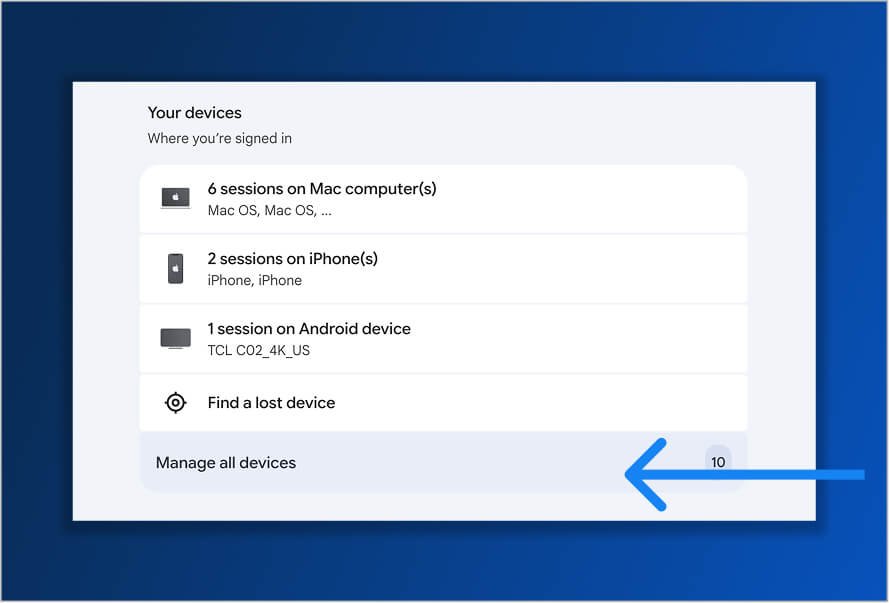
- Look for devices, browsers, or sessions you do not recognize
- Sign out of anything suspicious
- Run Google’s Security Checkup
Google’s device page shows devices where you are currently signed in or have been signed in during the last few weeks. Selecting a device or session provides more information about its recent activity.
Check the Google Account Security Devices Page
The Google Account Security Devices page is usually the fastest way to see whether an unfamiliar phone, computer, browser, or application has accessed your account.
How to View Devices With Account Access
Follow these steps:
- Sign in to your Google Account.
- Open Security & sign-in.
- Find the Your devices section.
- Select Manage all devices.
- Review every device and session listed.
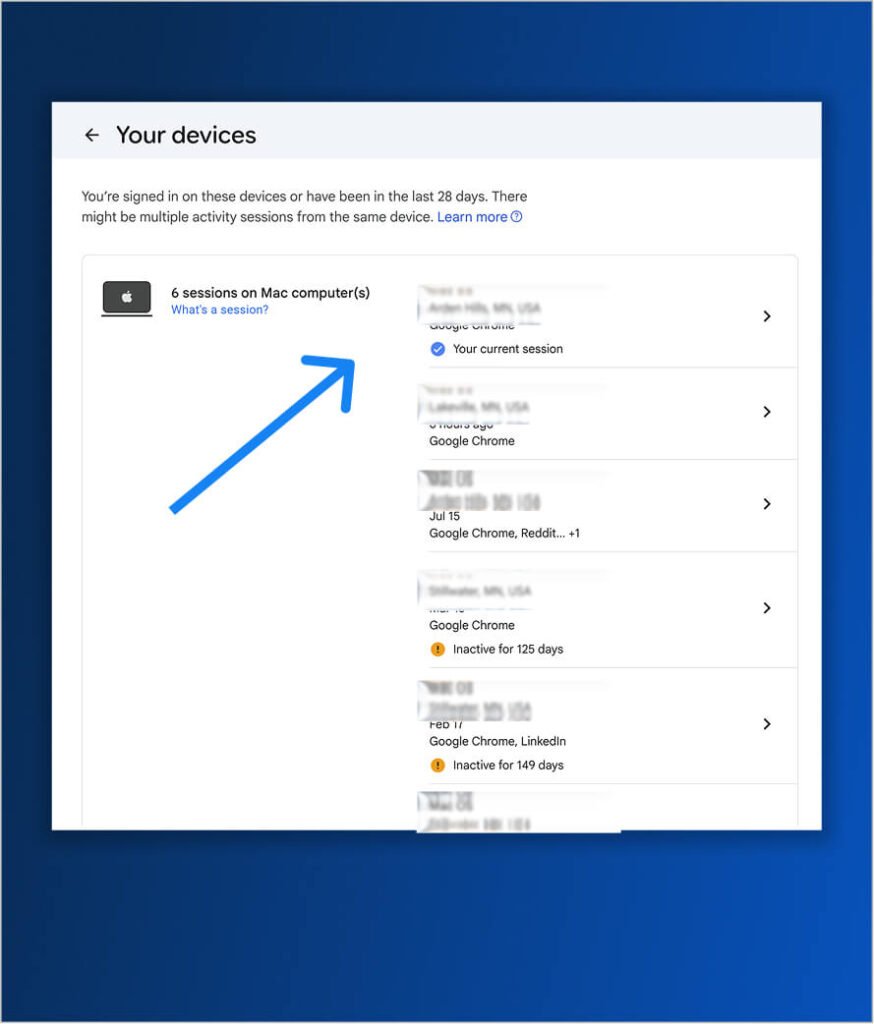
You may see phones, tablets, computers, smart TVs, browsers, apps, and other services connected to your Google Account.
Devices or sessions that are no longer active may be marked Signed out. Google may still display them temporarily so you can review the recent activity.
What to Look for on the Devices Page
Pay attention to:
- A phone, tablet, or computer you do not own
- A browser you do not normally use
- A device located in an unfamiliar area
- Activity that happened while you were not using the account
- An old phone or computer that should no longer have access
- Multiple sessions you cannot explain
Select each device to see more details. Depending on the device, Google may show the device type, browser, approximate location, and last time it communicated with Google.
Why a Device or Location May Look Unfamiliar
An unfamiliar entry does not automatically mean someone has hacked your account.
Google may create separate sessions when you:
- Sign in through a different browser
- Use an incognito or private browsing window
- Sign in to a new app
- Re-enter your password
- Give an application access to your Google Account
- Use multiple Google services on the same device
One computer could therefore appear as several sessions.
The activity time can also reflect automatic syncing between an app and Google, not necessarily the last time you physically used the device. Locations are approximate and may show a nearby city instead of your exact location.
Still unsure? Sign out of the session. It is better to sign back in later than leave a questionable session connected.
Run Google’s Security Checkup
Google’s Security Checkup provides personalized recommendations based on your account settings and recent activity.
Google recommends running the Security Checkup regularly, even when you have not noticed anything suspicious.
How to Open the Security Checkup
You can open it from your Google Account:
- Select your profile picture.
- Choose Manage your Google Account.
- Open Security & sign-in.
- Review the security recommendations shown.
You may also see a Recommended actions option near your profile picture. Selecting it takes you to the Security Checkup.
A green shield generally means Google does not currently have an immediate security recommendation. Yellow or red notifications may require more urgent attention.
What Google’s Security Checkup Reviews
The exact recommendations will depend on your account, but the Security Checkup may ask you to review:
- Recovery phone numbers
- Recovery email addresses
- Two-Step Verification
- Passkeys
- Devices connected to the account
- Third-party applications with account access
- Suspicious security activity
- Risky sign-in methods
Do not simply click through the Checkup. Confirm that every phone number, email address, device, and application belongs to you.
An attacker who changes your recovery email or phone number may be able to regain access even after you change your password.
Review Recent Security Events
The Recent Security Events page shows important activity involving your Google Account.
To review it:
- Open your Google Account.
- Select Security & sign-in.
- Find Recent security events.
- Select Review security events.
- Open any event you do not recognize.
Look for unexpected:
- Sign-ins
- Password changes
- Recovery email changes
- Recovery phone changes
- New devices
- New sign-in methods
- Two-Step Verification changes
- Security alerts
If an event was not yours, select the option indicating that you do not recognize the activity. Google will walk you through the steps to secure the account.
Check Gmail’s Last Account Activity
The Google Devices page covers your entire Google Account. Gmail also has a separate activity feature that focuses specifically on email access.
This can help when emails have been opened, deleted, forwarded, or sent without your knowledge.
How to View Gmail Access Details
You must use Gmail on a computer for this method.
- Open Gmail.
- Go to your inbox.
- Scroll to the bottom-right corner.
- Find Last account activity.
- Select Details.
The Activity on This Account window shows recent information about how Gmail was accessed.
What Gmail Activity Can Show
Gmail may display:
- Sign-in dates and times
- The type of access
- Browsers or devices used
- POP or IMAP mail access
- Third-party applications
- Recent IP addresses
- Approximate locations
- Concurrent Gmail sessions
Google says this page can show the last 10 IP addresses and approximate locations that accessed Gmail. It may also display additional IP addresses when Google has identified suspicious activity.
An IP address alone may not tell you who accessed the account. Mobile networks, office networks, internet providers, and VPNs can all affect the location shown.
Use this information together with the Devices page and Recent Security Events.
What to Do If You Find Unrecognized Access
Act quickly when you find a device, session, or security event that is clearly not yours.
1. Sign Out of the Device
Open Manage all devices, select the unfamiliar device or session, and choose Sign out.
When several sessions have the same device name, and you are unsure which one is yours, sign out of all of them. You can sign back in on the device you trust.
2. Change Your Password
Create a password that is:
- Long
- Unique
- Difficult to guess
- Not used for any other account
If you reused the same password elsewhere, change it on those accounts too. Someone who has your Google password may try it on your banking, shopping, social media, or business accounts.
3. Turn On Two-Step Verification
Two-Step Verification adds another requirement beyond your password.
Google supports options such as:
- Google prompts
- Security keys
- Authenticator codes
- Passkeys
- Backup codes
Google recommends stronger verification methods, such as security keys or Google prompts, over relying only on text-message codes.
Never approve a Google sign-in prompt you did not initiate.
4. Check Your Recovery Information
Confirm that the recovery email address and phone number belong to you.
Remove any unfamiliar recovery method immediately.
5. Remove Suspicious Apps
Review third-party applications that have permission to access your Google Account.
Remove applications that:
- You do not recognize
- You no longer use
- Request more access than they need
- Came from an unknown developer
Changing your password does not replace the need to review connected applications and active sessions.
6. Check Gmail Settings
Attackers sometimes create forwarding rules so they can continue receiving copies of your emails.
Review Gmail for unfamiliar:
- Forwarding addresses
- Filters
- Delegated accounts
- POP or IMAP settings
- Labels
- Blocked addresses
Google specifically recommends removing Gmail filters, forwarding rules, and other settings you did not create.
Signs Someone May Be Accessing Your Google Account
Possible warning signs include:
- Emails are marked as read when you did not open them
- Messages appear in Sent Mail that you did not send
- Emails are unexpectedly deleted or forwarded
- Your password stops working
- Your recovery information changes
- You receive an unexpected verification code
- Google asks you to approve a sign-in you did not initiate
- An unknown device appears in your account
- Your contacts receive unusual messages from you
- You notice unfamiliar activity in Drive, Photos, YouTube, or other Google services
One unusual event does not always prove that the account has been compromised. Several unexplained changes should be treated seriously.
How to Prevent Unauthorized Google Account Access
A few basic steps can prevent many account compromises:
- Use a unique password for Google
- Turn on Two-Step Verification
- Consider setting up a passkey
- Keep your recovery information current
- Remove old devices
- Review connected applications
- Update your browser, operating system, and apps
- Do not enter your Google password on unfamiliar websites
- Never share verification codes
- Run the Security Checkup regularly
Google will not ask for your password through an email, text message, or phone call. Be cautious with messages that create urgency and direct you to a sign-in page.
Frequently Asked Questions
Can I See Exactly Who Logged Into My Google Account?
No. Google can show devices, sessions, access types, IP addresses, approximate locations, and activity times. It generally cannot identify the specific person behind an unfamiliar login.
Use the information provided to determine whether the activity matches your devices and normal behavior.
Does Google Show the Exact Location of a Sign-In?
Usually not.
Locations are approximate. They may reflect your internet provider, mobile network, office network, VPN, or a nearby city.
A slightly incorrect location does not necessarily mean another person accessed the account.
Why Does Google Show Multiple Sessions for One Device?
A single device can create multiple sessions through different browsers, applications, services, private windows, or sign-in attempts.
Review the details. Sign out of all sessions with that device name when you cannot confidently identify them.
Can I Sign My Google Account Out of Every Device?
Google lets you select devices and sessions from the Manage All Devices page and sign them out.
You may need to repeat the process for multiple sessions. Check the page again afterward to confirm that only trusted devices remain.
Will Changing My Google Password Sign Other Devices Out?
Changing your password is important, but do not rely on it as your only step.
Review the Devices page, manually sign out of unfamiliar sessions, remove suspicious applications, and check whether recovery or Gmail settings were changed.
How Often Should I Run Google’s Security Checkup?
Run it periodically and whenever:
- You receive a security alert
- You lose a device
- You use a public computer
- An employee leaves your company
- Your password may have been exposed
- You notice unusual email activity
Businesses should review account security as part of a regular cybersecurity process, not only after an incident.
When Businesses Should Contact an IT Provider
A compromised personal account is serious. A compromised business Google Account or Google Workspace account can affect employees, customer data, financial information, and other business systems.
Contact your IT provider when:
- Multiple employee accounts show suspicious activity
- Sensitive business information may have been accessed
- An administrator account is compromised
- Email forwarding rules were changed
- Employees are receiving repeated phishing efforts
- You cannot determine how the attacker gained access
- You need help securing Google Workspace across the company
MITSSC helps businesses investigate suspicious activity, strengthen account protections, manage employee access, and reduce the risk of another account compromise.